
Overview
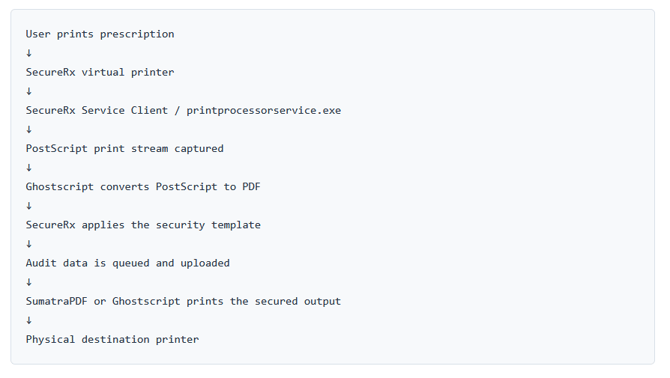
The user prints to a SecureRx virtual printer. The SecureRx Service Client captures the print job, converts it to a secure working format, applies the configured prescription security template, records audit information, and sends the secured document to the configured destination printer.
Main Components
SecureRx Service Client
The SecureRx Service Client is installed on the workstation or print server. It keeps the local SecureRx print environment synchronized with the customer's SecureRx cloud or server configuration.
The client is responsible for:
- Authenticating to the SecureRx server
- Downloading print-agent settings
- Downloading security templates
- Configuring local SecureRx virtual printers
- Reporting local printer information to the server
- Processing captured prescription print jobs
- Sending audit and log data back to the server
printprocessorservice.exe
printprocessorservice.exe is the Windows service executable used by the SecureRx Service Client.
The service runs in the background and manages the local print workflow. It periodically contacts the SecureRx server, retrieves current settings, creates or updates local SecureRx virtual printers, listens for print jobs, processes documents, and routes secured output to the final printer.
Ghostscript
Ghostscript is used for document conversion and, in some configurations, final print output. Its primary role is to convert the incoming PostScript print stream into a PDF that SecureRx can inspect, secure, and route.
Ghostscript may also be used as the final print engine when the SecureRx configuration uses a Ghostscript-based output path.
SumatraPDF
SumatraPDF is a lightweight PDF printing utility bundled with the SecureRx client. After SecureRx applies the configured security features, SumatraPDF may be used to silently print the secured PDF to the configured physical destination printer.
Detailed Workflow
1. The SecureRx Service Client Starts
When the SecureRx Service Client starts, printprocessorservice.exe loads its local configuration and contacts the SecureRx server.
The service authenticates using client credentials and receives an access token. It then requests the latest client settings, print-agent definitions, security templates, and output-printer configuration. This keeps the workstation or print server aligned with the configuration maintained in the SecureRx portal.
2. Local SecureRx Printers Are Configured
After the settings are downloaded, the service creates or updates the local SecureRx virtual printers.
Each virtual printer represents a SecureRx print agent. Users print prescriptions to these virtual printers just as they would print to any other printer. Behind the scenes, the virtual printer routes the print stream to the SecureRx Service Client for processing.
When a print agent is removed or changed on the server, the local service updates the workstation configuration during a subsequent synchronization cycle.
3. The User Prints a Prescription
The user selects the configured SecureRx virtual printer from the application used to generate the prescription.
The prescription is sent to the virtual printer as a PostScript print stream. The SecureRx Service Client receives the stream through its local print-agent listener and temporarily stores it for processing.
4. Ghostscript Converts the Print Stream
The incoming prescription print job is initially handled as a PostScript file. SecureRx reads basic job metadata from the PostScript content, such as the document title, owner, and copy count.
Ghostscript converts the PostScript file into a PDF. The PDF becomes the working document used by the SecureRx security engine to apply templates and security features.
5. SecureRx Selects the Security Template
Once the prescription is available as a PDF, SecureRx determines which security template applies. The template may be selected based on the print-agent configuration or print-match rules.
Depending on the configured template, security features may include:
- Secure marks
- Pantographs
- Microprint
- Watermarks
- Barcodes
- Redaction
- Print trace
- Prescription-specific overlays
- Addendum handling
6. The Prescription Is Secured
SecureRx processes the PDF through its document-security pipeline. The selected security template is applied, producing a secured PDF that contains the configured protections and any required tracking or audit information.
7. Audit Information Is Recorded
SecureRx records audit information about the print job. Audit data is queued locally and uploaded to the SecureRx server. If the workstation or print server cannot reach the server at that time, the client can retain the records locally and retry the upload later.
8. The Secured Prescription Is Printed
After the prescription has been secured, SecureRx routes the secured output to the configured physical printer. Depending on the customer configuration, the final print step may use SumatraPDF or Ghostscript.
- SumatraPDF output: SecureRx launches SumatraPDF silently and instructs it to print the secured PDF to the configured destination printer.
- Ghostscript output: SecureRx uses Ghostscript to render and send the secured document to the destination printer, including configured tray or output behavior where applicable.
Summary
The SecureRx print workflow protects prescriptions by intercepting the print job before it reaches the final printer, applying the configured security controls, and sending only the secured output onward.
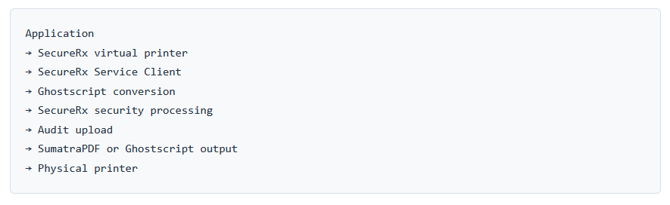
This workflow allows SecureRx to centrally manage prescription security while maintaining a familiar printing experience for users.